Social Media Image Sizes: Stop Awkward Auto-Cropping
You picked the perfect avatar, then the platform cropped it into half a face. You designed a beautiful cover, and the feed only shows a thin slice of it. The fix is simple: pre-crop to the platform's display ratio. This tutorial shows you how to do it locally with Web PSEditor, so what you crop is exactly what gets displayed.
Quick Size Reference
Avatars & square feed posts: 1:1 (800×800 px or larger); page covers: roughly 16:9 (commonly 1200×628); stories & short-video covers: 9:16. Pre-cropping to these ratios keeps platforms from cutting randomly.
The Two Crops You Need Most
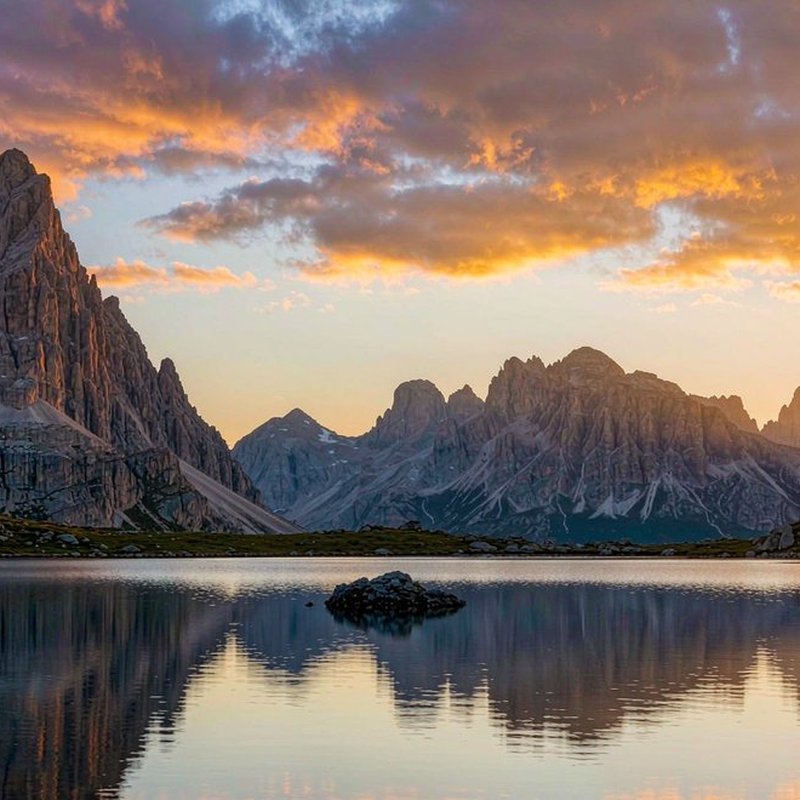
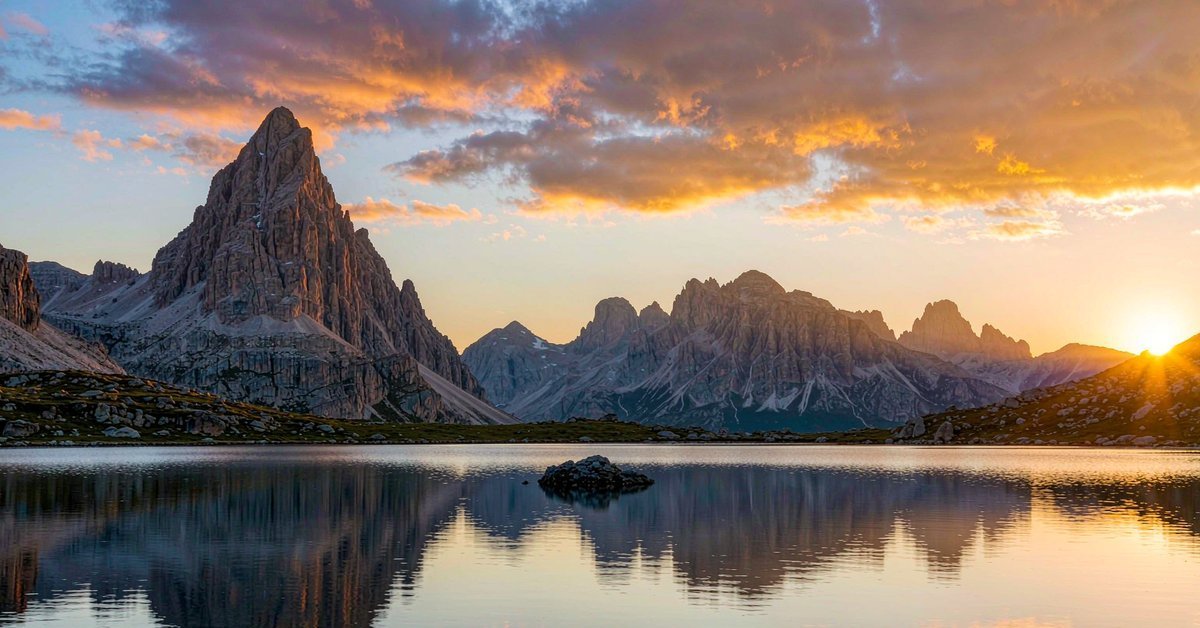
Step-by-Step in the Editor
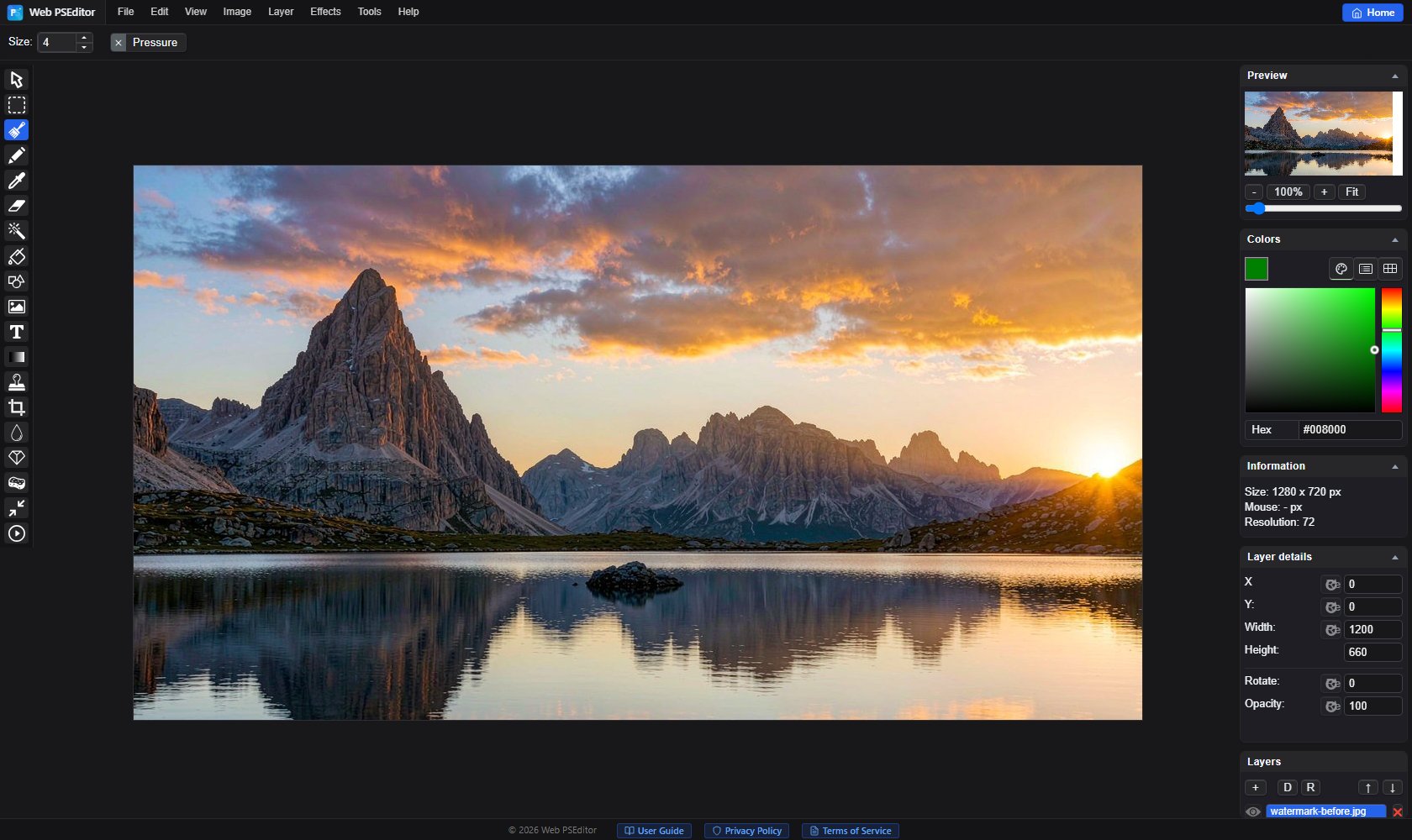
Open your photo, pick the Crop tool in the left toolbar, set the target ratio (e.g. 1:1) and confirm. Keep the subject centered or on a third line so it survives compression.
Click Image → Image Size and enter the target pixels (e.g. 800×800). Keep "keep aspect ratio" enabled to avoid distortion.
File → Save As as JPG (quality 85+). Check the live display after uploading and fine-tune the crop if needed.
Open the editor and crop your photo into a 1:1 avatar and a cover image.