Print a Photo at an Exact Physical Size
A print job fails for one of two reasons: the file has too few pixels for the physical size, or the print dialog quietly scales it. Both are predictable, and both are settled before you press print.
The maths is short: pixels = inches × DPI. At 300 DPI, 4 × 6 inches is 1200 × 1800 pixels, A4 (8.27 × 11.69 in) is 2480 × 3508, and a 35 × 45 mm passport photo is 413 × 531. At 150 DPI the same physical sizes need only a quarter of the pixels — acceptable for a poster viewed from a metre away, not for a passport photo inspected at arm's length.
Step 1: Decide the Target Pixels
| Output | Physical size | Pixels at 300 DPI |
|---|---|---|
| Standard photo print | 4 × 6 in / 10 × 15 cm | 1200 × 1800 |
| A4 document insert | 210 × 297 mm | 2480 × 3508 |
| Passport / visa photo | 35 × 45 mm | 413 × 531 |
| 5 × 7 in desk frame | 5 × 7 in | 1500 × 2100 |
Write the two numbers down before opening any dialog. Working backwards from the print dialog is how people end up resampling three times.
Step 2: Get There in One Resample
4 × 6 is 2:3. If the photo is 3:2 or 4:3, decide what to lose before resizing, using the Select tool plus Image → Trim, or by cropping with the selection and Edit → Delete Selection after inverting. Cropping after resizing means the pixel count you carefully calculated no longer applies.
Image → Resize: enter the target width and height in pixels, Mode Lanczos, Sharpen ticked, Layers All. One pass. If the numbers come out slightly off — 1198 instead of 1200 — redo the resize from the original rather than nudging the canvas afterwards.
If the source is 900 × 1350 and the target is 1200 × 1800, enlarging invents a third of the pixels. It will print, and it will look soft at reading distance. Better options: print smaller, or accept 200 DPI by setting the physical size down.
Step 3: Print at Actual Size
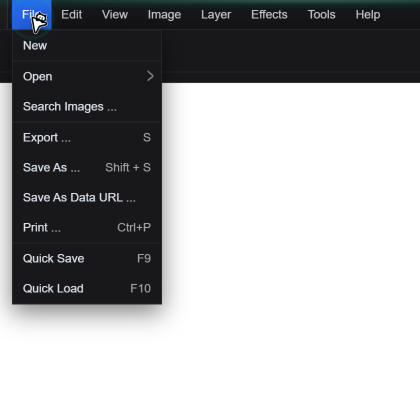
This opens the browser's print pipeline with the canvas as the content. In the print dialog that follows:
- Set Scale to 100% or "Actual size". Every browser defaults to "Fit to page", which silently shrinks a 4 × 6 to whatever fits the paper margins.
- Turn headers and footers off — the URL and date printed at the top are a classic giveaway.
- Set margins to None if the image should reach the paper edge, understanding that most home printers cannot print to the edge and will still leave a border.
- Choose the paper size that matches what you calculated. Printing a 4 × 6 file onto A4 at 100% gives a 4 × 6 patch on a big sheet.
Colour and Paper Notes
- Screen brightness lies. A photo that looks right on a 300-nit display prints about one stop darker. If it matters, lift brightness slightly with Image → Color Corrections before printing.
- Matte paper eats contrast. Glossy holds deeper blacks; matte flattens. The same file can look washed out on matte and correct on gloss.
- Don't print a JPG twice. Export once at Quality 90+, print from that file, and keep the layered project separate.
- Borders are a design choice. If the print needs a white border, build it into the file with Image → Canvas Size rather than relying on printer margins, which are uneven.
Passport and Visa Photos
These are the strictest case, because the physical size is checked with a ruler. 35 × 45 mm at 300 DPI is 413 × 531 pixels. Crop the head to the required proportion first, then resize to exactly those numbers, then print at 100% on the correct paper. If several copies are needed on one sheet, grow the canvas with Image → Canvas Size to 4 × 6 and duplicate the layer, positioning each copy with Image → Translate — that is faster and more accurate than printing the same file four times.
Quick Answers
My print came out smaller than 4 × 6. Why?
The print dialog was left on Fit to page, which scales the image down to the paper margins. Set Scale to 100% or Actual size, turn off headers and footers, and make sure the selected paper size matches the size you designed for.
How many pixels do I need for A4 at 300 DPI?
2480 × 3508. The formula is inches × DPI: A4 is 8.27 × 11.69 inches, so 8.27 × 300 = 2480 and 11.69 × 300 = 3508. At 150 DPI the same page needs 1240 × 1754, which is acceptable for images viewed from a distance.
Does the Resolution field in Canvas Size set the print DPI?
It selects the unit-and-preset system used by the dialog, so it changes how your numbers are interpreted, not the physical size embedded in an exported file. The reliable method is to set the pixel dimensions for your target DPI, then print at 100% with the correct paper size.
Related Tutorials
Prepare one file at 1200 × 1800 for a 4 × 6 print, then check the preview shows it filling the paper edge to edge.