How to Change ID Photo Background Color Online
Need a blue or red background ID photo in a hurry, but only have a white one? You don't need to install heavy desktop software. Here is a step-by-step tutorial on how to quickly swap your passport/ID photo background using Web PSEditor — your photo never leaves your device.
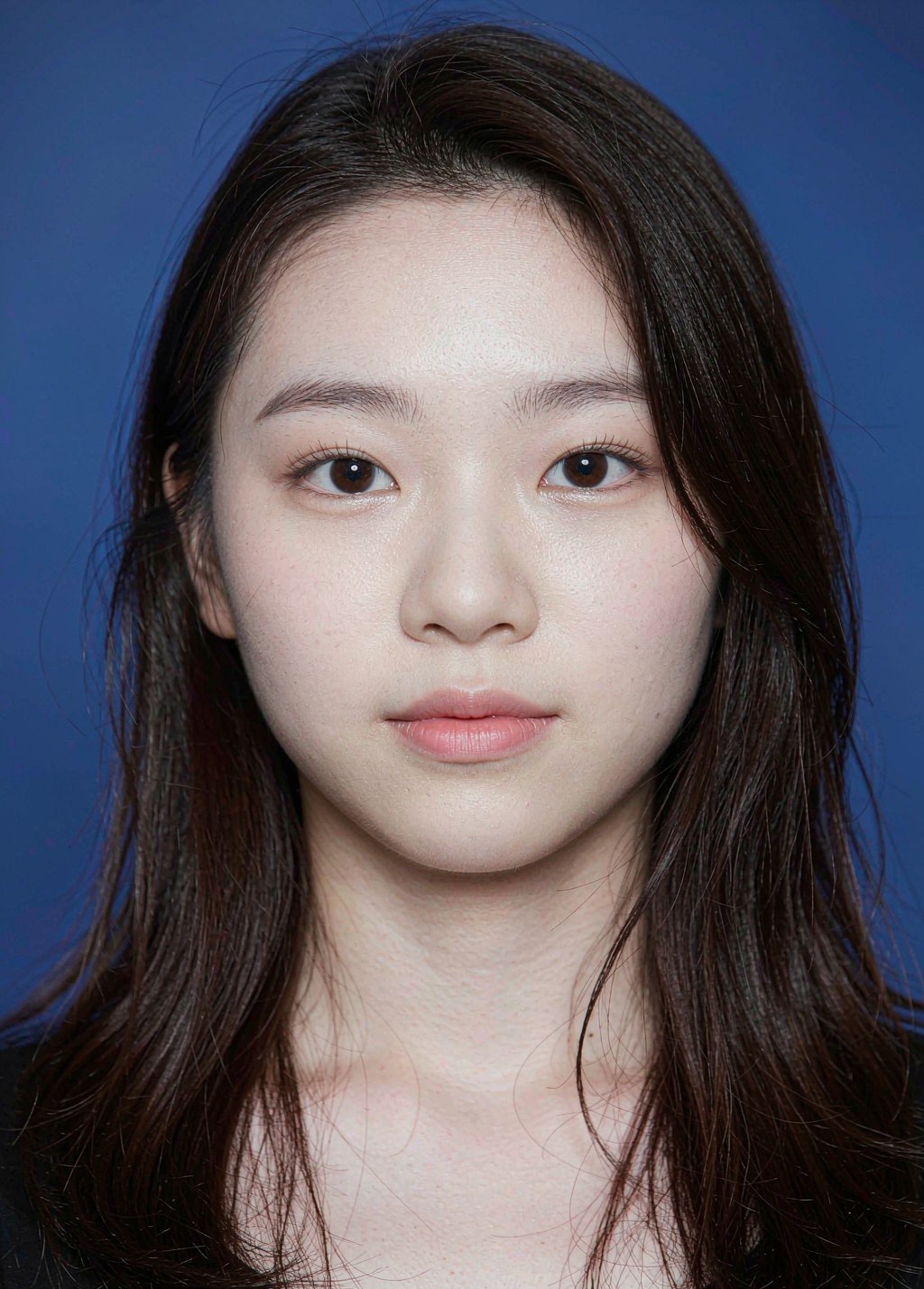
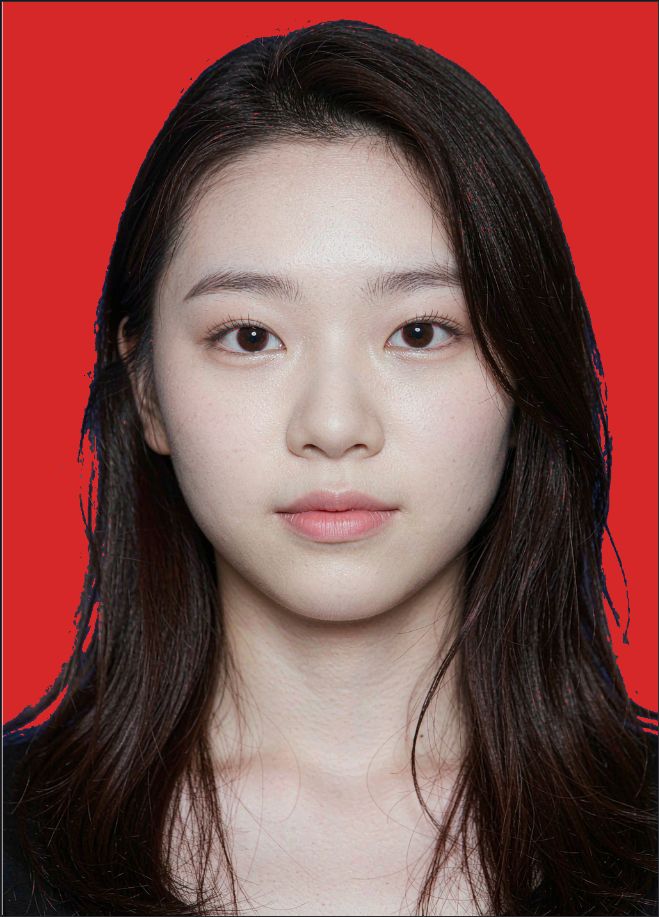
Standard ID Photo Background Colors
- Standard blue: RGB(67, 142, 219) / hex
#438EDB— diplomas, work permits, résumés, driver's licenses - Standard red: RGB(214, 40, 40) / hex
#D62828— insurance, medical records, certifications - White: RGB(255, 255, 255) / hex
#FFFFFF— passports, ID cards, visas
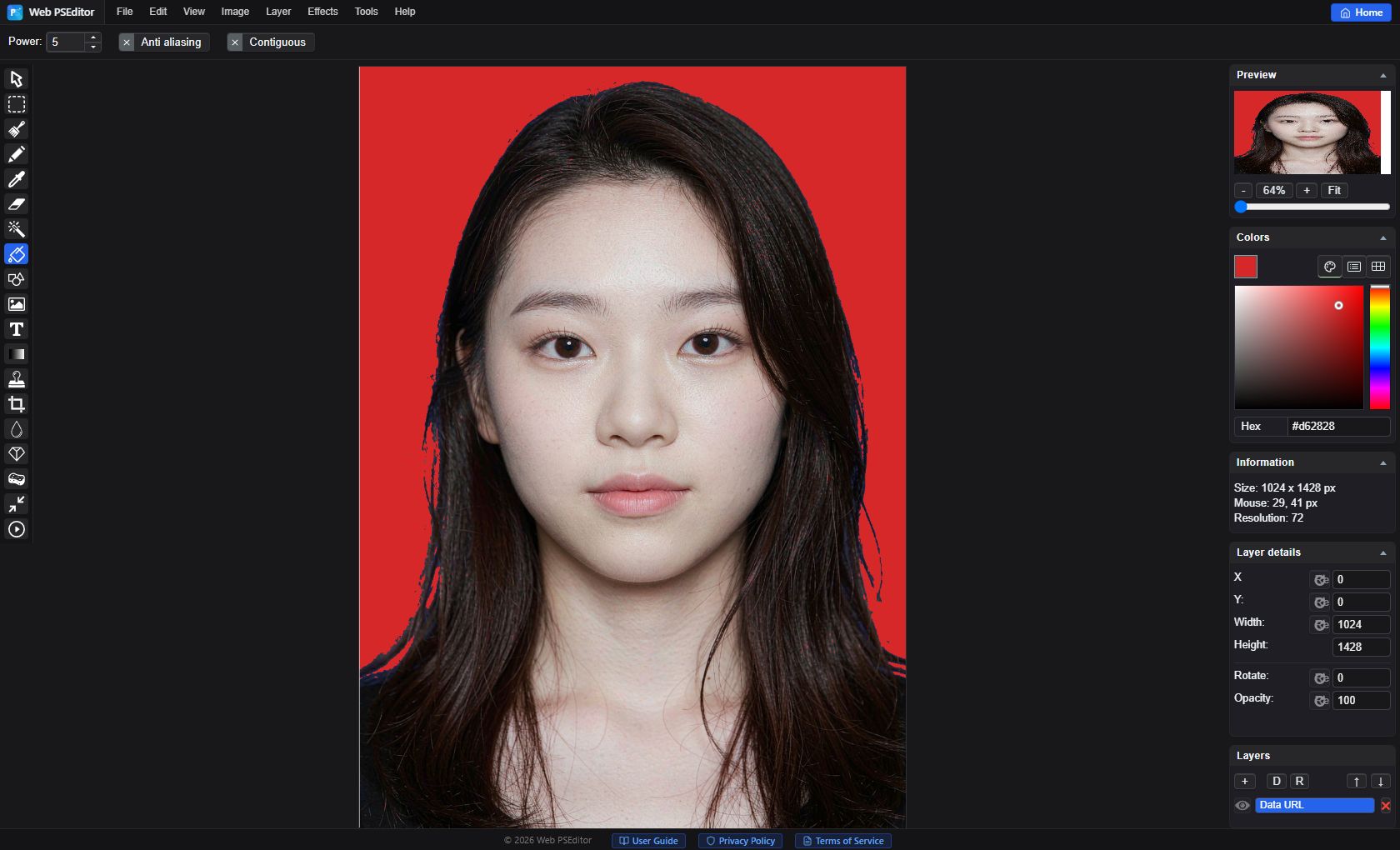
Navigate to Web PSEditor, click File → Open (or press Ctrl + O) to load your picture, or drag and drop it onto the canvas.
Pick the Magic Wand Tool from the left toolbar. Set Tolerance to around 25-35 in the top attributes bar, and click on the white background.
Go to Selection -> Feather, enter 1 or 2 px. This smoothens the edges and avoids artificial harsh outlines around your hair.
Select your desired background color (e.g. Standard Blue #438EDB) and use the Fill Tool (or press Delete), then click File → Save As to export your updated photo as JPG or PNG.
- No feathering — without a 1–2 px feather, the boundary between hair and the new background looks like a hard sticker outline.
- Tolerance too low on shaded backgrounds — parts of the old background stay unselected. Raise the tolerance or Shift-click the missed areas.
- Non-standard color values — exam and visa systems check background colors; always use the official hex codes listed above instead of picking by eye.
Frequently Asked Questions
Will changing the background leave white fringes around my hair?
Not if you feather the selection by 1–2 px first (Step 3). If you still see a thin fringe, erase the halo manually with the Eraser at a small size, or re-select with a slightly higher tolerance.
Can I change a blue background to white for passport photos?
Yes — the workflow is identical. Select the blue background with the Magic Wand, feather it, set the foreground color to #FFFFFF and fill.
What resolution should the final photo be?
Most exam and ID systems ask for 295 × 413 px (one-inch) or 413 × 579 px (two-inch) at 300 DPI. Use Image → Resize to set the exact size before exporting.
Is my portrait photo uploaded anywhere?
No. Web PSEditor processes everything locally in your browser via HTML5 Canvas — zero uploads, zero cloud storage, and it even works offline.
Related Tutorials
No software installation required. Apply this technique in your browser right now—100% private and secure.