Save Your Project and Pick It Up Tomorrow
This is the most common way to lose an afternoon: you finish the edit, use File → Save As, get a file, and later discover it will not open in an image viewer — because it is not an image. It is a project file.
File → Save As writes Full layers data, a JSON file that records every layer, its position, its filter stack and the canvas size. File → Export writes a flat PNG, JPG, WEBP, GIF, BMP or TIFF — one merged picture, no layers, ready to upload. Same menu, two different universes.
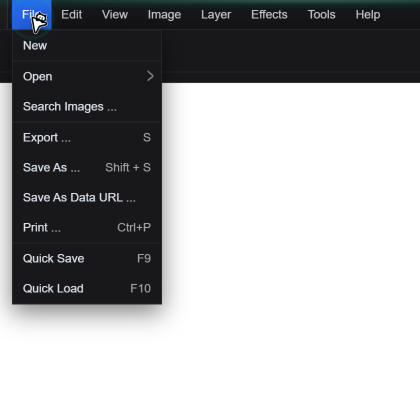
Which One You Need
| You want to… | Use | You get |
|---|---|---|
| Continue editing later, layer by layer | File → Save As | A JSON project file |
| Post it, send it, upload it | File → Export | PNG / JPG / WEBP / GIF / BMP / TIFF |
| Keep a quick scratch copy in this browser | File → Quick Save (F9) | Data in browser local storage |
| Reopen that scratch copy | File → Quick Load (F10) | The last quick-saved state |
Exporting an Image
The dialog offers File name, Save as type, Quality (1–100, default 90), a Show file size checkbox and a Save layers option. For a normal picture: type JPG or PNG, leave Quality at 90, tick Show file size if there is an upload limit, and export.
Note that Export is also bound to S, while Shift + S opens Save As. Hitting the wrong one is easy, and the symptom is a file that "cannot be opened" by anything except this editor.
Saving a Project
Only one type is offered here: JSON, described as Full layers data. Name it, save it, and you have a file you can reopen with File → Open → Open File — the open dialog accepts JSON alongside images. Every layer comes back with its position, opacity and filters intact.
Two limits worth knowing. First, the JSON references nothing outside itself for raster content — the layer pixels are embedded — so the file can be large (a few MB for a multi-layer project). Second, text layers come back as editable text only if their font is available in the browser; a font that is not installed will be substituted.
Quick Save and Its One Risk
File → Quick Save (F9) writes the project into the browser's local storage under a single key. File → Quick Load (F10) restores it. It is genuinely useful: close the tab, reopen the editor, press F10, and the work is there.
The risk is that it is a single slot in browser storage. Clearing site data, using private browsing, switching browsers, or opening the editor on another computer all mean the quick save is not there. Treat F9 as a convenience between sessions on the same machine, never as a backup.
A Workflow That Survives
- Save a JSON project first, named with the date, before you start experimenting. Undo history is not saved in it, but the layers are.
- Export an image when the edit is done, and keep both files in the same folder:
poster.jsonandposter.jpg. - Re-export from the project, never from the exported image. Editing a JPG and saving it again compounds compression each time; coming back to the layered project keeps quality at the original level.
- Hand over the JSON when a client wants to continue working, and the JPG when they want to look at it.
Recovering When Something Went Wrong
If you saved with Save As and now cannot open the file anywhere: check the extension. A JSON file named photo.png will fail in every viewer and look corrupt. Rename it to .json and open it in the editor again — the layers should return.
If the browser was closed without any save at all, check whether a quick save exists: reopen the editor and press F10. If nothing loads, the state is gone; there is no server-side history here, which is the same property that keeps your images private.
Quick Answers
My saved file will not open in any image viewer. Is it corrupt?
Probably not. File → Save As writes a JSON project, not an image. Check the extension — if it is .json, reopen it with File → Open → Open File inside the editor and your layers return. If you need a picture, use File → Export instead.
Will Quick Save survive clearing my browser data?
No. Quick Save stores the project in browser local storage, in a single slot. Clearing site data, using private browsing, a different browser or a different machine all lose it. Keep a JSON project file for anything you care about.
Does the JSON project keep my undo history?
No. It stores the layers, their positions, opacity and filters, plus the canvas size. Undo steps are not part of the file, so reopening a project starts a fresh history — save before a risky experiment rather than relying on undo after reopening.
Related Tutorials
Make two layers, save as JSON, close the tab, reopen, load the JSON, then export a JPG and compare which file a browser can display.